 DeskDraft
Create a printable classroom seating chart
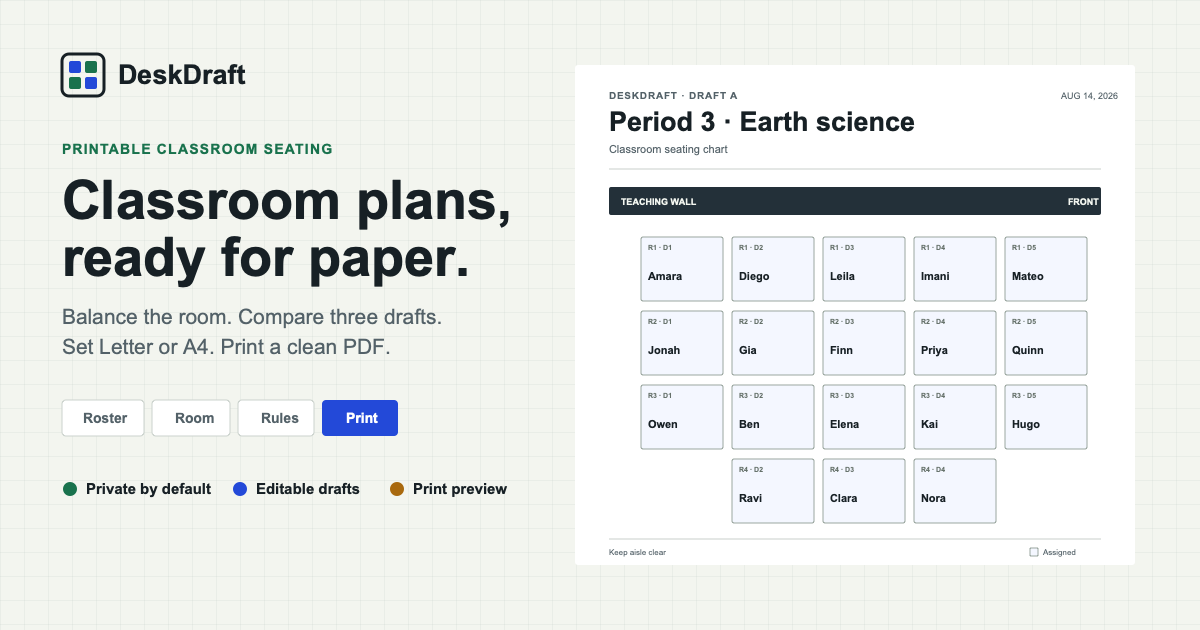
A good printed chart should fit on one page, keep names readable, identify the front of the room, and omit details the reader does not need. DeskDraft’s Print Studio previews those choices before the browser print dialog opens.
US Letter or A4
Choose the paper loaded in the printer. US Letter measures 8.5 × 11 inches. A4 measures 210 × 297 millimeters and is slightly narrower and taller.
DeskDraft calculates desk dimensions against the selected physical page, including the printable margins, rather than stretching a screen screenshot onto paper.
Match the room shape
Use landscape when the room has many desks across each row. Use portrait for narrow, deep rooms or when the chart needs a taller page.
The preview changes aspect ratio immediately. DeskDraft then limits desk dimensions so even an eight-by-eight room remains inside the printable page.
Set desk scale and labels
Start at 100% desk scale. Reduce it when the room contains many desks or names are short and more whitespace is useful. Increase it for a small class when larger names matter more.
Useful printed details
- Teaching wall makes the chart’s direction unambiguous.
- Desk coordinates help another adult locate a seat quickly.
- Legend explains assigned and open desk styles.
- Date distinguishes current plans from old copies.
- Footer note can identify a subject, room, or substitute instruction without exposing constraint details.
Color or grayscale
Color preserves DeskDraft’s blue desk tint and dark teaching wall. Grayscale uses neutral fills that remain distinct on monochrome printers and photocopies.
For the most predictable output, enable background graphics in the browser print dialog. The border and text structure still remain readable if backgrounds are disabled.
Print or save a file
- Open the Print step and choose the current draft.
- Set paper, orientation, ink, scale, and printed details.
- Select Print / PDF.
- In the browser dialog, choose a printer or Save as PDF.
- Confirm the paper size and orientation match Print Studio.
Because the print document is generated locally, no roster or PDF is uploaded to DeskDraft.
Printable chart FAQ
Why does the browser show extra headers and footers?
Those are browser print settings. Disable “Headers and footers” in the print dialog if you want only the seating chart.
Why does my printer change the scale?
Printer drivers may add non-printable margins. Use the browser’s default or 100% print scale first, then adjust only if the preview clips.
Can I print without desk coordinates?
Yes. Turn off Desk coordinates in Print Studio. The setting persists with the project and its backup.
How do I change the students before printing?
Return to a draft and click two desks to swap them. Read the classroom seating chart guide for the full planning workflow.
Set the printable layout before opening the dialog.
Preview the real paper shape, tune the chart, and save a clean classroom PDF without uploading the roster.
Open Print Studio